1
Install AnyDesk
Download AnyDesk for your OS and open the app. It is free and takes about a minute to set up.

Experience a live hosted Mac with full remote control. Evaluate responsiveness, app launch speed, and day-to-day workflow before choosing your plan.
Important: Connection Method
This demo uses AnyDesk for the trial experience. However, when you subscribe, your connection will be provided via Jump Desktop (or our preferred remote access app layer) due to better performance and reliability. You can still use AnyDesk if you prefer, but you will need to install it separately after connecting through Jump Desktop. Learn more about Jump Desktop →
Use these credentials in AnyDesk to instantly connect to a real demo Mac.
AnyDesk ID
833425539
AnyDesk Password
***********
This is a shared demo environment intended for evaluation only.
Start your free demo quickly and confirm performance before choosing a plan.
1
Download AnyDesk for your OS and open the app. It is free and takes about a minute to set up.
2
Paste the AnyDesk ID from the credentials card, then send the connection request.
3
Reveal and copy the password when prompted. You will be connected to the live demo Mac right away.
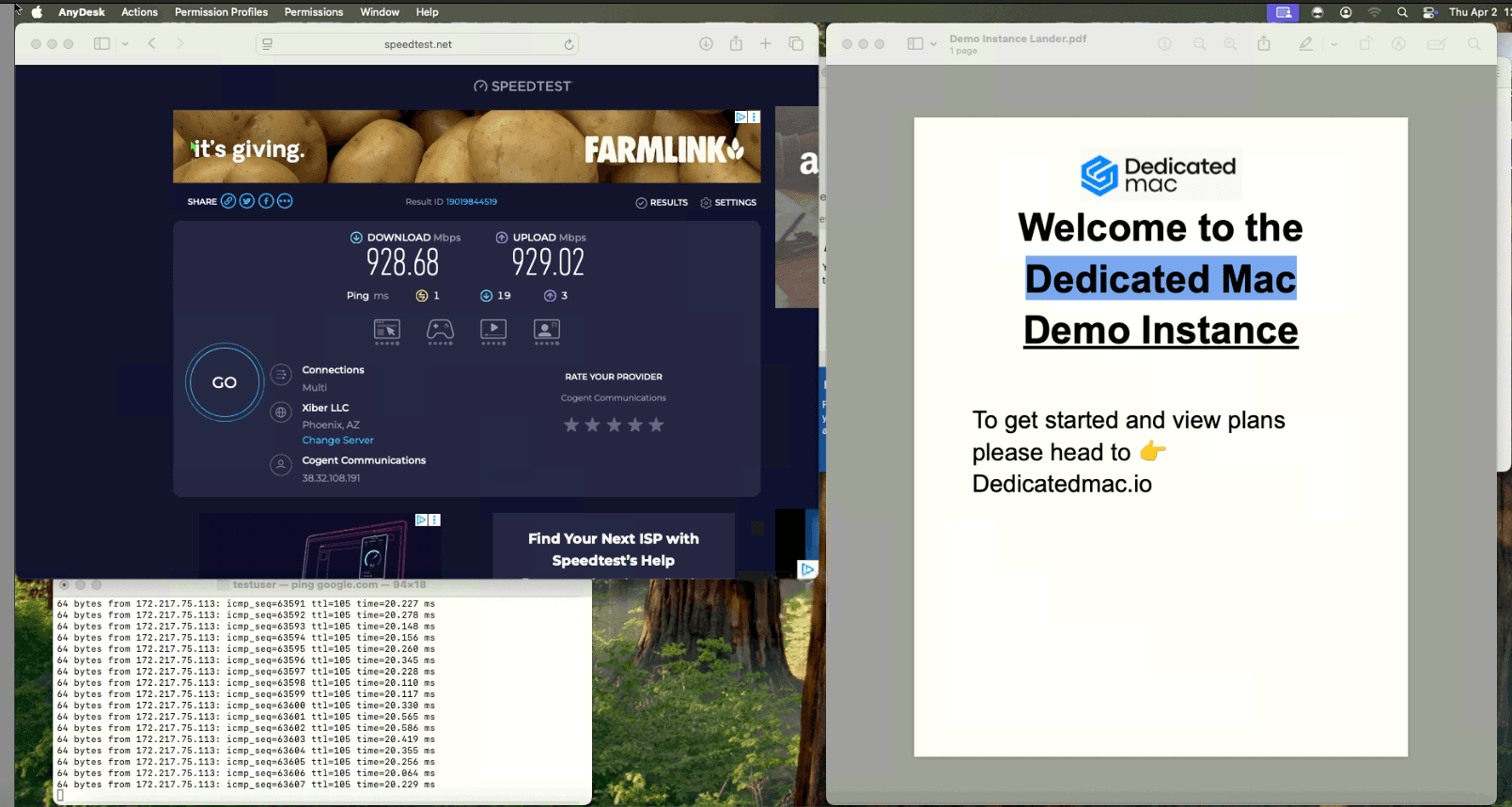
A real screenshot from the demo environment so you know what to expect before connecting.
< 50ms
Average Latency
99.9%
Uptime Target
< 2 min
Setup Time
Continue from the demo to a private instance with full admin access, persistent usage, and instant onboarding.